What’s new for October 2019?
We added support for 5G network option under the Network Emulation section in a performance test configuration.
API additions
/api/sessions/ endpoint now lists the public IPs of the cloud load engines it launched
We added support for 5G network option under the Network Emulation section in a performance test configuration.
/api/sessions/ endpoint now lists the public IPs of the cloud load engines it launched
You can now find the public IP of a ship, in addition to the internal IP, in the “Address” column of the Private Location page.
The Request Stats Report shows the metrics for each element of a test script, allowing you to drill down and review the statistics (stats) for how every single element of your test performed. You can download it as a CSV file, and we have now added the unit of measurement to the CSV’s header (milliseconds and seconds).
Customers with on premise locations can now pull images directly from an internal docker registry managed and controlled by them instead of manually updating the existing Ships each time BlazeMeter release new images.
We added the used dedicated IP to the Load Engines dropdown so users can now easily locate the relevant Load Engine associated to their test that is running.
We upgraded our graphs library with a better visual experience. We also improved the functionality to download graph images.
We have improved our authentication process and now offer a more secure way to log in with Two Factor Authentication (2FA). We also enhanced our Single Sign On (SSO) experience.
We’ve upgraded our engine images to support Taurus 1.13.7
In order to improve the product’s security, users with a “Tester” role won’t be able to modify the configuration of Private Locations.
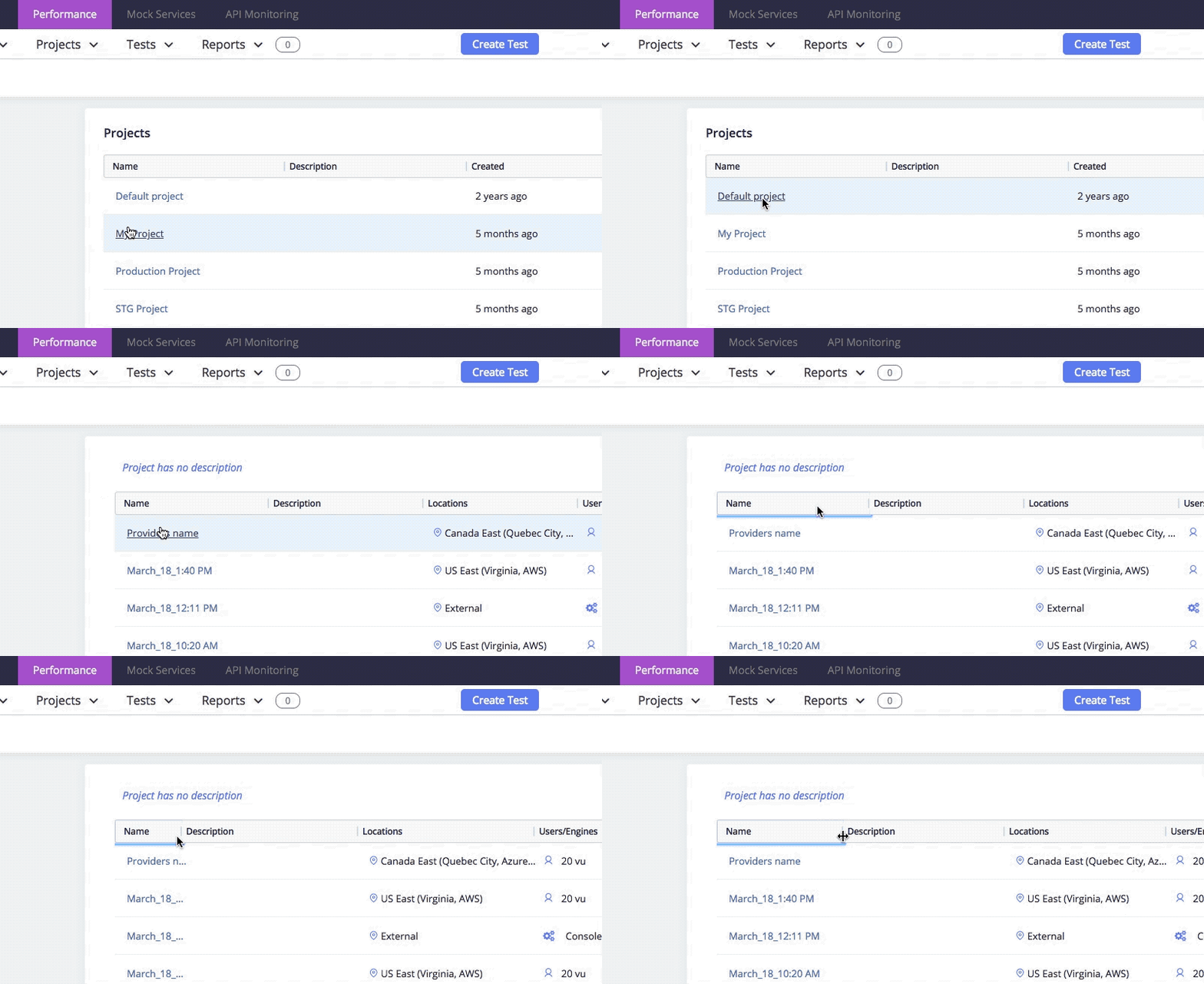
We added the option to modify the columns size for the tests’ table in a project, so it is easier to look for tests with long data (name, description, locations, etc).
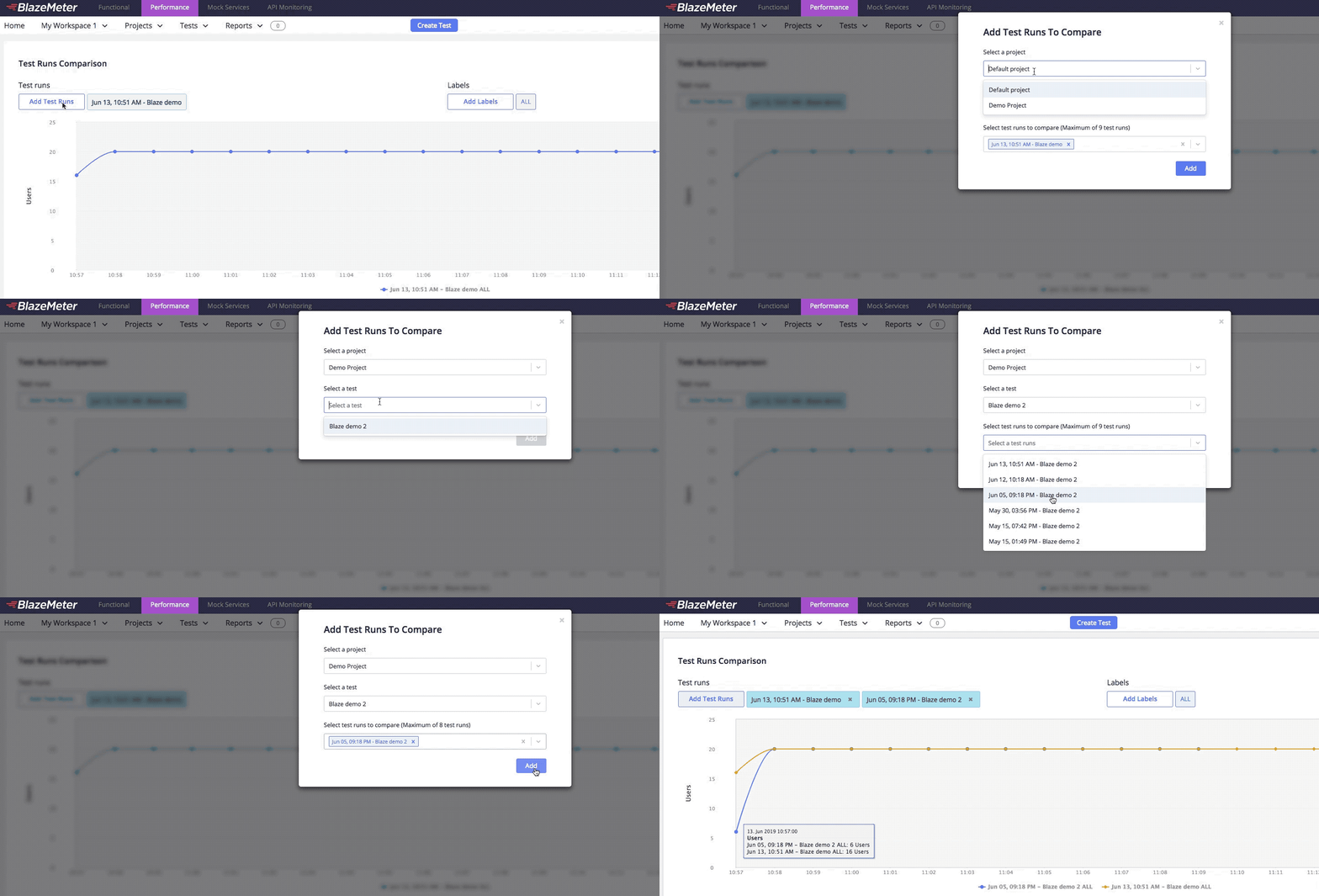
You asked for it, and now you can do it - we've added the ability to compare reports between different projects instead of limiting you to the specific project the report is located at.
We’ve upgraded our engine images to support Taurus 1.13.6
We added two separate tabs for Functional and Performance Tests, so you can easily navigate between your functional and performance tests. When clicking on each tab retrospectively, the tests and reports are filtered, but the projects, workspaces, and all other account information can be accessed the same way.
You can now get a live view of the last 300 lines in you JMeter logs live for V4 tests. This can be found in the log tab, in application view of the tail, to allow for easier debugging.
Now users will be automatically logged out after a configured amount of time being idle. For the definition of ‘idle’, viewing an open BlazeMeter tab, even if no action is performed, still counts as an activity. You can define the session timeout on an account level. The configuration is accessible on the “Security” (previously “API Keys”) page in the Account settings and is accessible for admins and account owners:
Once session timeout expires, the user will be logged out of BlazeMeter. In case there’s a BlazeMeter tab open when logged out, the user will get the following message, allowing him to re-login or refresh the page:
We added the information for you to see who in your workspace has modified a test.
Up until now, changing a yaml file in a performance test was a long process of downloading, deleting and editing a file before uploading it back to the test. Based on customer feature requests, we added the option to edit YML scripts directly inside the script editor. We have also added an option to duplicate YML files, allowing users to keep the original script as a backup.
We have transitioned 11 of our API Monitoring Cloud locations from AWS and 1 location from Rackspace, to their respective Google Cloud Platform (GCP) locations. They are: US Virginia, US California, US Oregon, Germany, Australia, Singapore, Hong Kong, Japan, Brazil, India, Canada, and London. The region codes for those locations continue to be the same, and users should not see any impact to their tests. For the complete list of locations and their providers, please check out our docs.
Users can now create automated GUI Functional Tests without needing to code! Just drag and drop actions into place using our new Scriptless Editor. All tests recorded in the BlazeMeter Chrome Extension can also be edited and enhanced this way.
BlazeMeter Scriptless Testing includes many other capabilities like components, loops, custom code, conditionals, and a built in debugging experience . You can read more about it here.

JMeter < 2.13 deprecated (Older tests now execute with 2.13)
As of this release, we have deprecated JMeter engines with versions below 2.13. Any scripts that were created in earlier versions of JMeter will now be executed with 2.13.
Zoom synchronized across Timeline Report, Request Stats & Errors
Now when you zoom the Timeline Report graph, the sliders in Request Stats and Errors will follow the same selection. The reverse works as well: Moving the sliders will re-zoom the Timeline Report.
Online Recorder whitelisting simplified: always uses port 8153
The online Recorder now uses a static port number (8153), so there’s no need to whitelist a long range of ports in order to use it. We'll be changing it to port 80 soon to make it even easier. If you are new to the Recorder, have a look at BlazeMeter Proxy Recorder (Mobile and web) or just click the “Recorder” button on the Create Test screen to get started:
Azure available in New Test Create (NTC) Beta
Now you can run tests on Azure (26 locations) from within the New Test Create (NTC) Beta.
BlazeMeter API V2 deprecated; “latest” now points to V4
We have deprecated our V2 API and have pointed “latest” to our V4 API. This change was announced via email to all users of the V2 API in April.
Have a look at API Changes Effective June 10, 2018 if you need tips for migrating any remaining V2 or “latest” references in your code. Feel free to Contact Support if you have further questions.
Now you can disable or enable overrides to these thread groups with just one click. When Arrivals thread group or Ultimate thread group are being used in a script, the Load Configuration section will be grouped together under one toggle, allowing you to decide if you want the load configuration to be defined in the UI (overriding the original threat group used) or to keep the load configuration as defined in the script (using the Arrivals / Ultimate thread group used in the script).
We have switched the places of “Actual” and “Threshold” columns in the Failure Criteria tab under the report, so that the results are more readable:
Since responseTime.avg threshold 500 ms is smaller than the actual result of 717.71 ms, the test failed.
We have also added two new conditions, “<=” and “>=” to the available failure criteria conditions, and rounded all the Actual values to 2 decimal places.
Now you can get even more information about your private locations. We’ve added more data on the ships that can be displayed, and for each agent you can now see the free disk space (both in GB and in percentage) and the image versions installed on the agent. To see this additional data, hover on the Information icon (“i”) in the Description column under the Private location page.
We’ve added new browser versions including Chrome version 84, and Firefox version 78 - these versions are set as default.
If your OPL functionalities are configured to have default browser versions, you can select the default option in the browser version dropdown. The default version is set to be the latest BlazeGrid browser version (Currently chrome: 84, firefox: 78). If auto-update is disabled for OPL and the latest version is not installed on Ship yet, then tests will be executed using the latest ship browser version
For BlazeMeter account admins, we’ve added a new chart under the usage report displaying the maximum number of virtual users per day. This allows you to easily identify those days with high user activity in your BlazeMeter account. Currently, the report shows performance and functional test usage.
Do you have many Workspaces? We’ve eliminated the need to download separate reports from each Workspace to track usage at the Workspace level. Look for the new “Workspace ID” column in the Account level Usage Report CSV. If you are have Owner, Admin or Billing role for your account, navigate to Settings > Account > Usage Report and click the Download CSV button:
This STARWEST session, led by Stephen Feloney, Vice President of Continuous Testing Products, explores AI’s current and future role in testing, how to implement AI intentionally for high
JMeter versions 3.1, 3.2 and 3.3 were removed from Blazemeter.
Now there is no such version in the “JMeter version” dropdown.
Existing tests that have JMeter 3.1 - 3.3 versions selected will still run, you’ll see warnings about the deprecated version usage: