
eBook > The JMeter Playbook: Build, Scale, and Optimize Performance Tests
Regular Expression & Other Extractors
In JMeter and other load testing tools, the term correlation is the process of capturing a dynamic value from the server response and using it in a subsequent request. Common examples include:
- Session IDs and CSRF tokens
- OAuth access tokens
- Resource IDs returned after creating a record
JMeter provides several Post-Processors (mainly “Extractors”) for this purpose.
Back to topRegular Expression Extractor
Right-click a sampler → Add → Post Processors → Regular Expression Extractor.
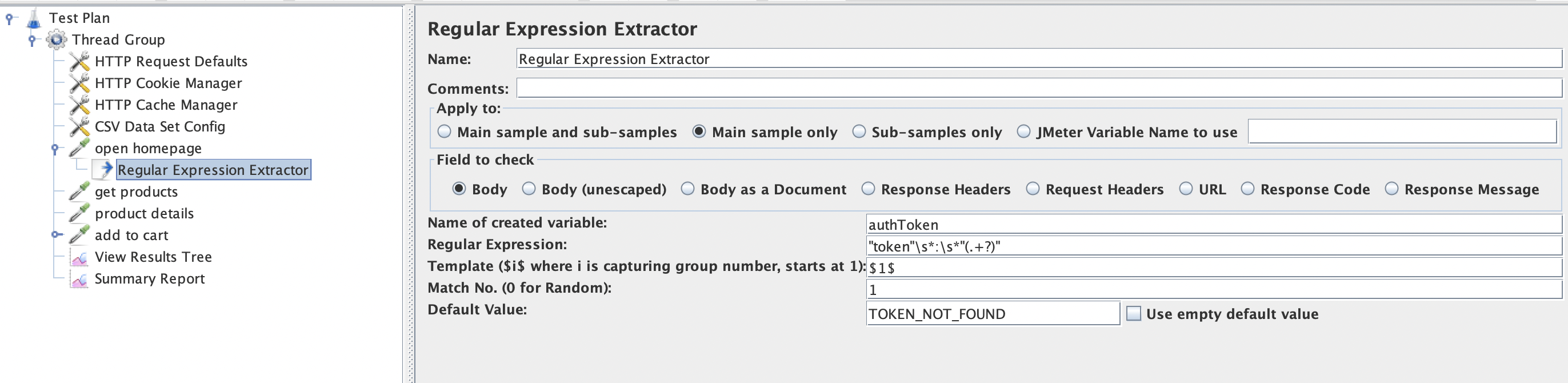
📸 Screenshot: Regular Expression Extractor configuration.
Fields
| Field | Description | Example |
|---|---|---|
| Apply to | Which part of the response to search, main sample, sub-samples or JMeter Variable | Main sample only |
| Field to check | Body, Headers, URL, Response Code, or Response Message | Body |
| Name of created variable | Variable name to store the extracted value | authToken |
| Regular Expression | Regex with a capture group(s) () | "token":"(.+?)" |
| Template | Which capture group to use | $1$ |
| Match No. | 1 = first match, 0 = random, -1 = all | 1 |
| Default Value | Value if no match found | NOT_FOUND |
Example: Extract a Token from JSON
System under test response:
{
  "userId": 42,
  "token": "eyJhbGciOiJIUzI1NiIsInR..."
}
Regular Expression Extractor configuration:
Name of created variable : authToken
Regular Expression: "token"\s*:\s*"(.+?)"
Template          : $1$
Match No.         : 1
Default           : TOKEN_NOT_FOUND
Use the extracted value in the next request:
Header: Authorization = Bearer ${authToken}
Back to topTip: Always set a meaningful Default Value (e.g.,
NOT_FOUND). In case of failed correlation, you will seeNOT_FOUNDin subsequent requests and it will allow you to see that something went wrong.
JSON Extractor (Recommended for REST APIs)
If your API returns JSON, the JSON Extractor is simpler and more readable than regex.
Right-click a sampler → Add → Post Processors → JSON Extractor.
Let’s return to our example test plan. We have a 2nd request which reads the list of products from the website backend API and returns JSON response which looks like this:
{
  "Items": [
    {
      "cat": "phone",
      "desc": "The Samsung Galaxy S6 is powered by 1.5GHz octa-core Samsung Exynos 7420\n processor and it comes with 3GB of RAM. The phone packs 32GB of \ninternal storage cannot be expanded. ",
      "id": 1,
      "img": "imgs/galaxy_s6.jpg",
      "price": 360.0,
      "title": "Samsung galaxy s6"
    },
    {
      "cat": "phone",
      "desc": "The Nokia Lumia 1520 is powered by 2.2GHz quad-core Qualcomm Snapdragon 800 processor and it comes with 2GB of RAM. ",
      "id": 2,
      "img": "imgs/Lumia_1520.jpg",
      "price": 820.0,
      "title": "Nokia lumia 1520"
    }
  ]
}
So, as you can see:
Samsung galaxy s6has id1Nokia lumia 1520has id2
We have a list of product names in the CSV file, so now we need to extract product IDs from the server response to use them in the following request.
Let’s add a JSON Extractor to the 2nd request and set it up like this:
| Field | Description | Example |
|---|---|---|
| Names of created variables | Variable name | productId |
| JSON Path expressions | JSONPath query | $.Items[?(@.title=='${product}')].id |
| Match No. | 1 for first match | 1 |
| Default Values | Fallback value | NOT_FOUND |
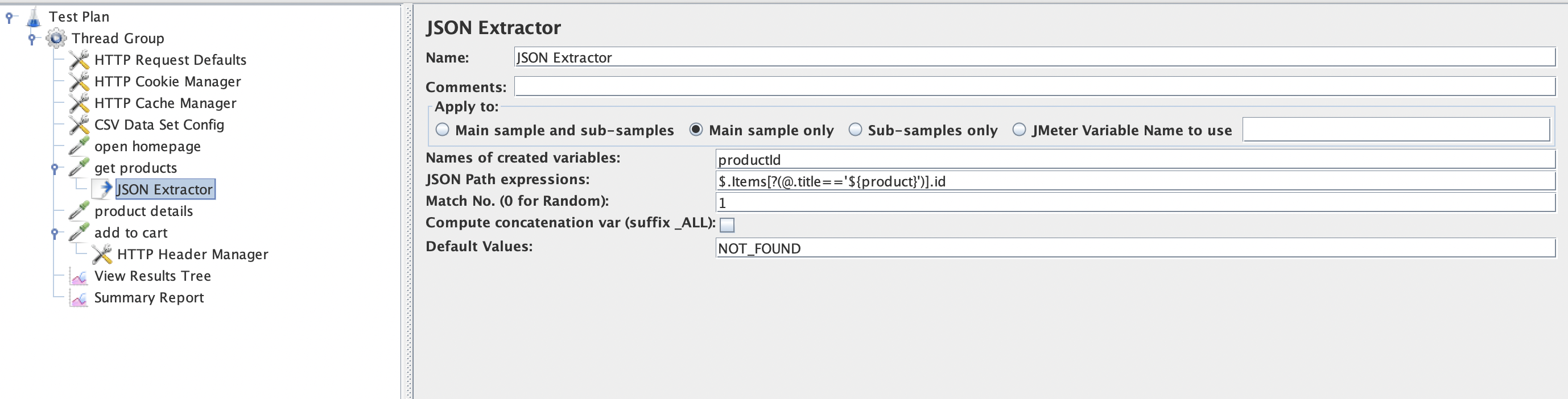
📸 Screenshot: JSON Extractor configuration.
Now we have a dynamic ${productId} variable. The value will be populated depending on the current line from the CSV file. Now, let’s replace hardcoded values in 2 requests with dynamic product ID:
product detailsrequest correlation:Image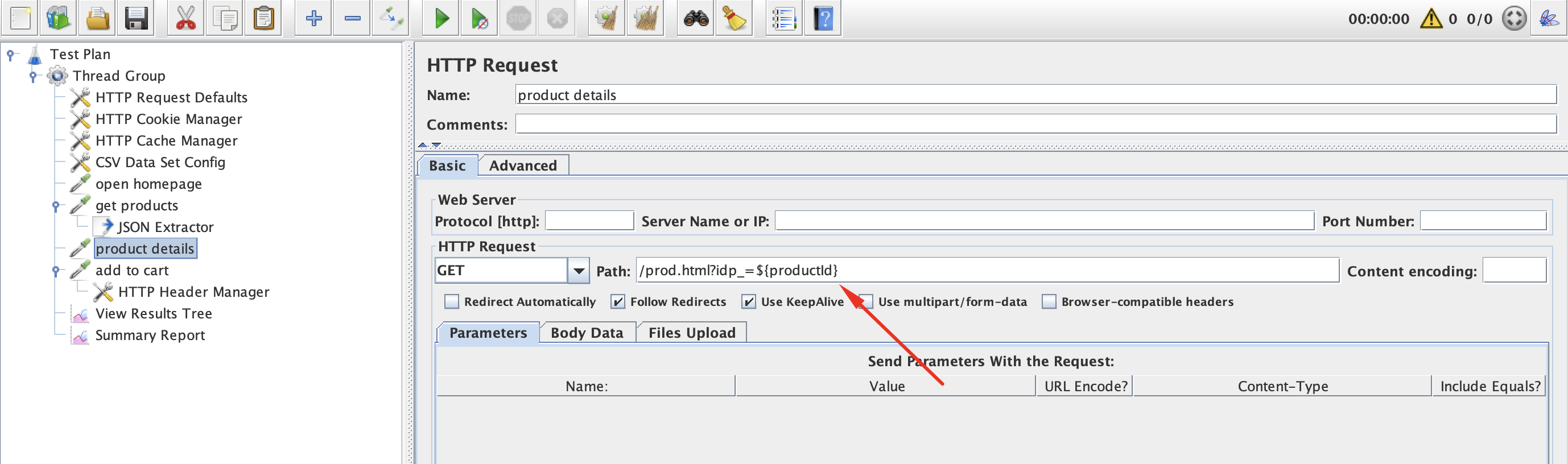
📸 Screenshot: Product Details Request Correlation
add to cartrequest correlation:
Image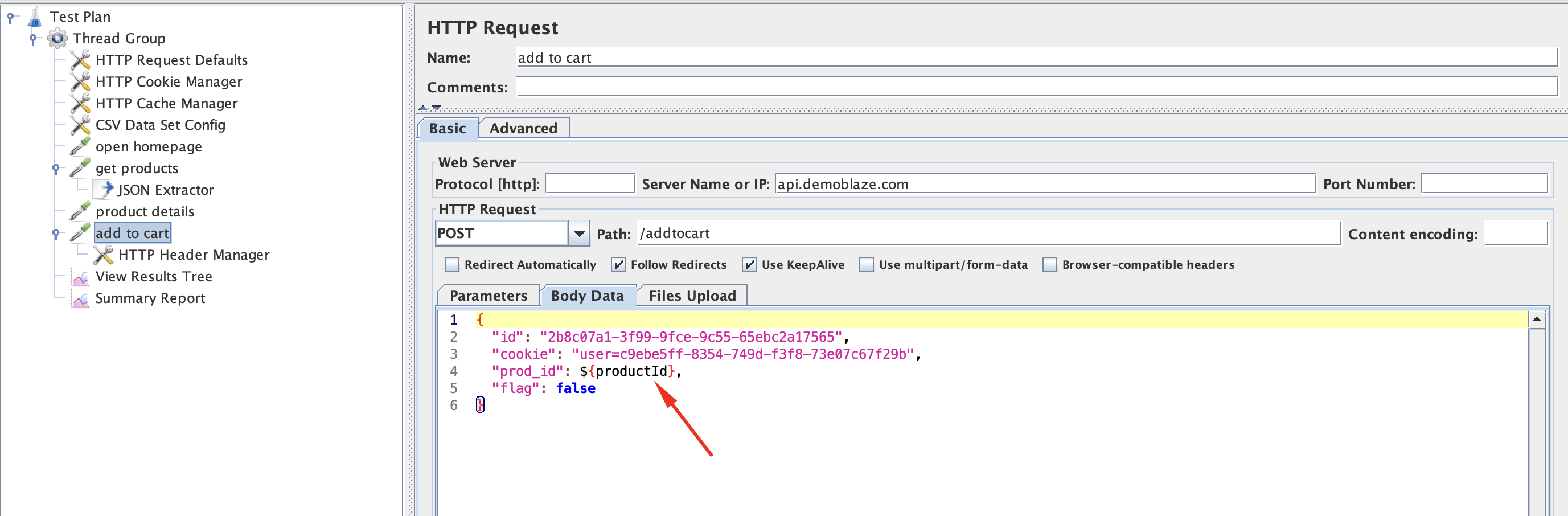
📸 Screenshot: Add To Cart Request Correlation
Hold on. We have a couple more values in the request body which look dynamic to me:
{
  "id": "2b8c07a1-3f99-9fce-9c55-65ebc2a17565",
  "cookie": "user=c9ebe5ff-8354-749d-f3f8-73e07c67f29b"
}
However, looking into server responses, I cannot find any places where they’re set. So, I assume that they’re generated on the client side (in the browser). As JMeter is not a browser and cannot execute JavaScript, we need to properly simulate these parameters to be unique to match real user/browser behavior.
Values seem to be GUID-like structures, so JMeter’s function __UUID() is a good candidate because it returns exactly what we’re looking for. So, let’s replace hardcoded values with ${__UUID()} function:
{
  "id": "${__UUID()}",
  "cookie": "user=${__UUID()}",
  "prod_id": ${productId},
  "flag": false
}
The final fully parameterized request body would look like this:
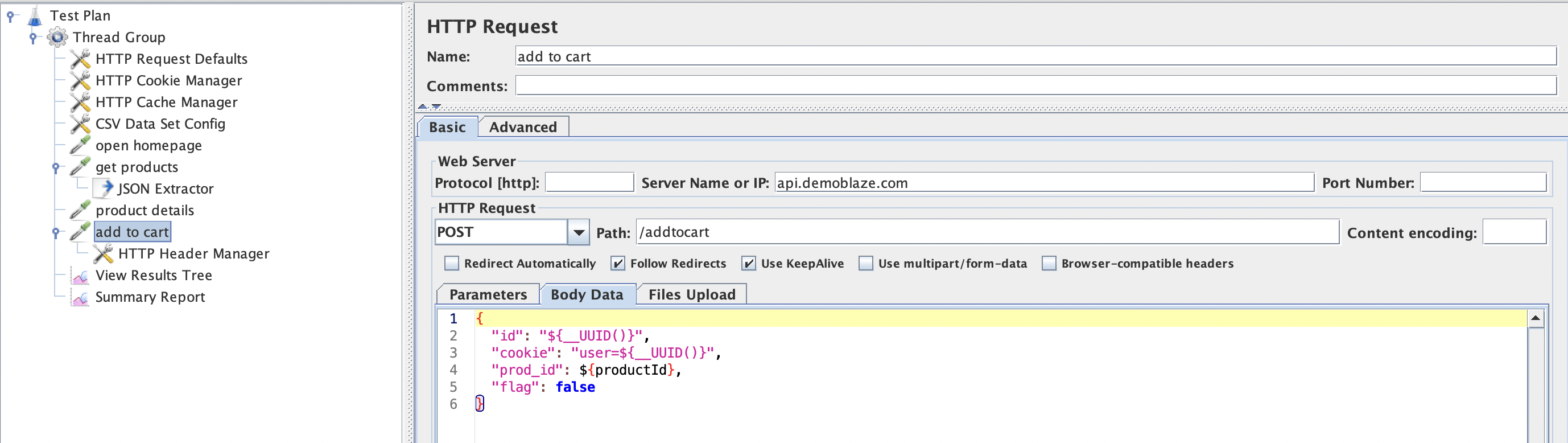
📸 Screenshot: Fully Parameterized Add to Cart request.
Now, let’s continue to other types of extractors.
Back to topXPath Extractor (For XML/HTML)
If the response is XML or HTML, use the XPath Extractor or XPath2 Extractor.
XPath Query              : //input[@name='csrf_token']/@value
Name of created variable : csrfToken
CSS Selector Extractor (For HTML)
Uses CSS selectors (like jQuery) to extract values from HTML:
CSS Selector : input[name=csrf_token]
Attribute    : value
Variable     : csrfToken
Choosing the Right Extractor
| Response Format | Recommended Extractor |
|---|---|
| JSON | JSON Extractor or JSON JMESPath Extractor |
| XML / SOAP | XPath2 Extractor |
| HTML | CSS Selector Extractor or XPath Extractor (the latter one uses more resources but it’s more powerful) |
| Anything else | Regular Expression Extractor or Boundary Extractor - the latter one is the easiest one as it simply extracts everything between left and right boundaries |
| Response headers | Regular Expression Extractor (set Field to check = Headers) |
Debugging Extractors
- Add a Debug Sampler after the request. It dumps all variables so you can verify the extracted value.
- Use View Results Tree with the RegExp Tester or JSON Path Tester view (dropdown at the bottom of the response pane) to test your expression interactively.
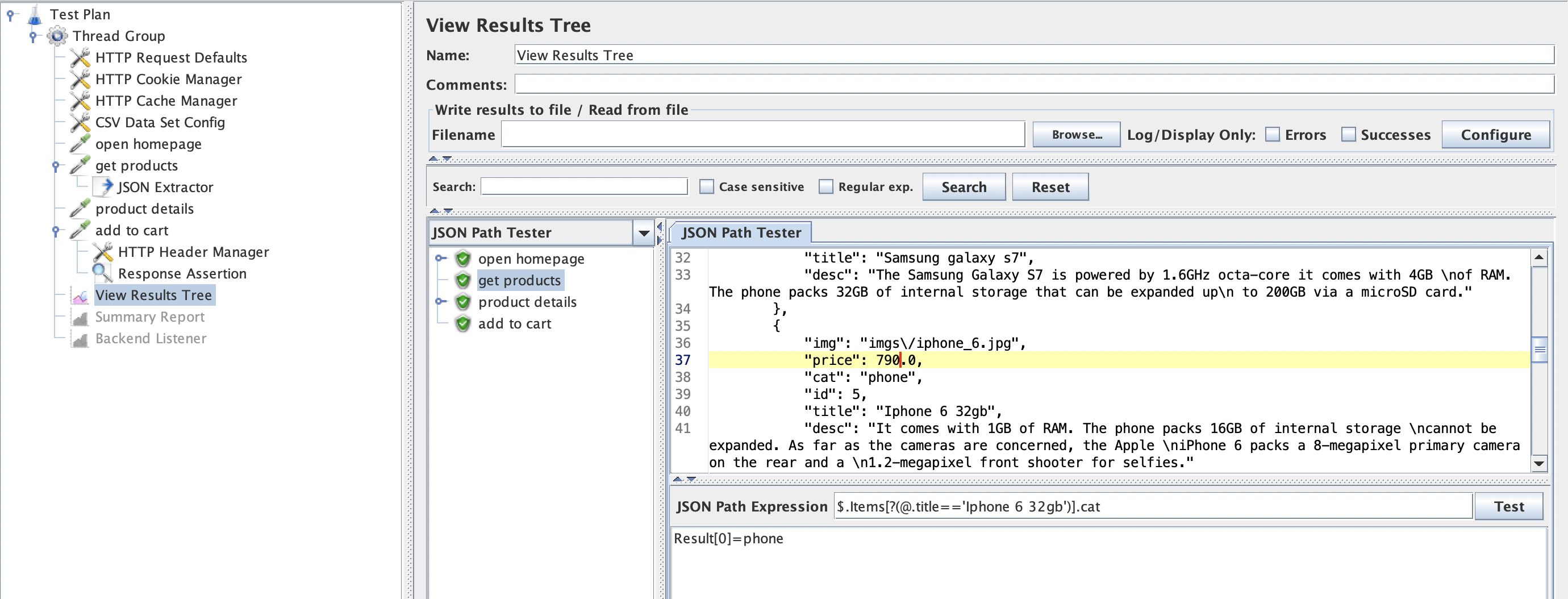
Back to top📸 Screenshot: Testing a JSON Path expression in View Results Tree.
Correlation Workflow
A typical correlation workflow looks like this:
1. HTTP Request - POST /login
   └── JSON Extractor → ${authToken}

2. HTTP Request - GET /api/profile
   Header: Authorization = Bearer ${authToken}
   └── JSON Extractor → ${userId}

3. HTTP Request - GET /api/orders?userId=${userId}
Each response feeds data into the next request and creates a realistic user flow.
Summary
- Correlation captures dynamic values from responses and injects them into subsequent requests.
- Use JSON Extractor for JSON, XPath for XML, CSS Selector for HTML, and Regex as a universal fallback.
- Always set a default value and use the Debug Sampler to verify extracted values.
- The View Results Tree Tester views let you prototype expressions without re-running the test.
We completed correlation and parameterization for the test plan. Now let’s continue to Assertions and Logic Controllers.