
eBook > The JMeter Playbook: Build, Scale, and Optimize Performance Tests
CSV Data Set Config
CSV Data Set Config is the most commonly used configuration element for parameterization. It works simply: each virtual user reads the next line from the CSV file on each iteration and stores the value(s) into variable(s).
We chose the Samsung galaxy s6 product in the previous chapter. Now, let’s parameterize it so each user would add different product.
Creating a CSV File
Create a file called products.csv in the same directory as your .jmx file:
product
Samsung galaxy s6
Nokia lumia 1520
Nexus 6
Samsung galaxy s7
Back to topTip: Use a header row. JMeter can read the column names from the first line and you won’t have to specify additional variable names in the CSV Data Set Config.
Adding the Config Element
Right-click Thread Group → Add → Config Element → CSV Data Set Config.
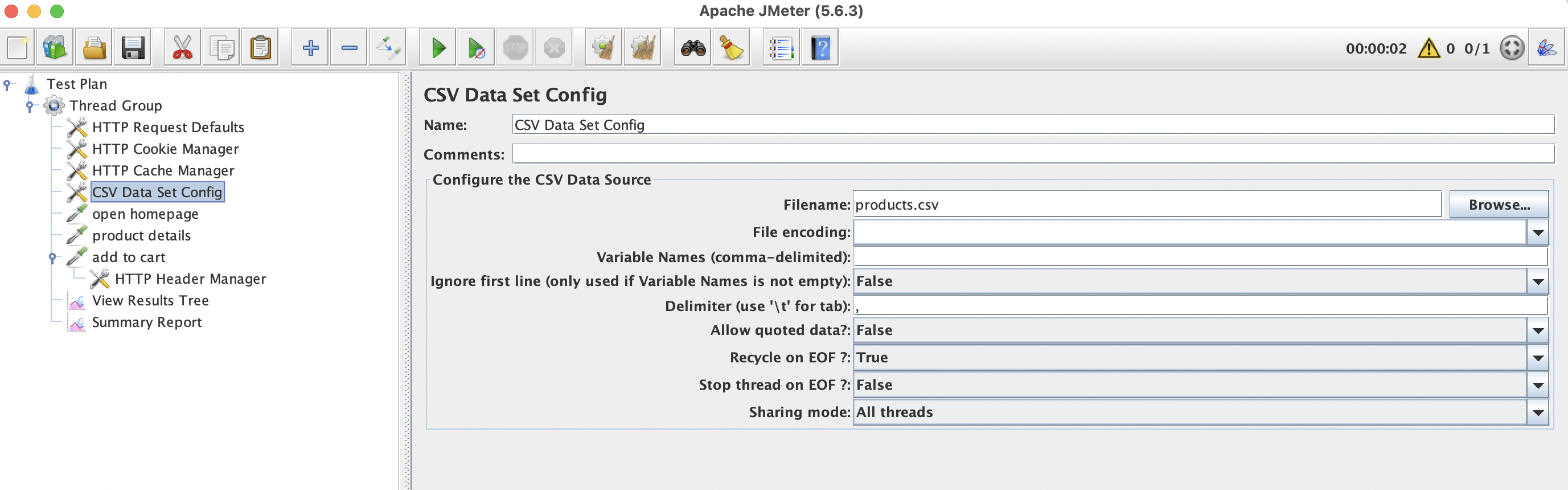
📸 Screenshot: CSV Data Set Config configuration panel.
Settings Explained
| Setting | Description | Recommended Value |
|---|---|---|
| Filename | Path to the CSV file (absolute, or relative to the .jmx location) | products.csv |
| File encoding | Character set. May be necessary for some national characters. UTF-8 (Unicode) is always a good choice | UTF-8 |
| Variable Names | Comma-separated names for variables which will be created by the element. If blank, JMeter reads the header row | (leave empty if the file has a header) |
| Ignore first line | Skip the header | True (if using header for column names, set to False and leave Variable Names empty) |
| Delimiter | Column separator | , |
| Allow quoted data | Support fields like "Smith, Jr." | False |
| Recycle on EOF | Start from the beginning when last line of CSV file is reached | True |
| Stop thread on EOF | Stop the thread when no more lines left in the CSV file | False |
| Sharing mode | How this file is accessed by virtual users | See below |
Sharing Mode
| Mode | Behaviour |
|---|---|
| All threads | All threads in all thread groups share a single file pointer - each thread gets a unique row |
| Current thread group | Sharing is limited to threads within this thread group |
| Current thread | Each thread reads the file independently from the start |
For most login scenarios, it makes sense to use All threads so every virtual user reads a new line on each iteration.
Back to topUsing CSV Variables in Requests
Once the CSV Data Set Config is in place, use ${product} anywhere in your samplers:
HTTP Request - POST /login
Method : POST
Path   : /api/login
Body Data:
{
  "product": "${product}",
}
Each thread (virtual user) will pick the next row from the CSV file on every iteration.
Back to topMultiple CSV Files
You can add multiple CSV Data Set Config elements. For example:
users.csv→${username},${password}products.csv→${productId},${productName}
Each file is read independently.
Back to topBest Practices
- Make sure to have enough test data. If you have 100 threads and the file only has 10 rows, the same data will be used by multiple threads. Or the test will end prematurely.
- Use relative paths - Keep CSV files next to the
.jmxso the test is portable and can be executed on other machines or in CI/CD. - Commit CSV files to version control alongside your test plan.
- Use
Sharing mode = All threadswhen each virtual user should have unique data.
Summary
- CSV Data Set Config reads a file line by line and maps columns to variables.
- Use
${variableName}syntax to reference CSV columns in any sampler field. - Choose the right Sharing mode to control whether virtual users get unique or repeated data.
The next step would be learning how JMeter Functions and Variables can be used for tests parameterization.