
eBook > The JMeter Playbook: Build, Scale, and Optimize Performance Tests
Installation
Prerequisites
Before installing JMeter, make sure you have Java 8 or later installed. JMeter 5.6+ officially supports Java 8 or higher. Also, if possible, use JDK instead of JRE as it includes
keytoolwhich is needed for recording HTTPS traffic with your browserjconsole,jstatand other tools which are useful for JMeter tuning and troubleshooting
Verify your Java version:
java -version
You should see output similar to:
openjdk version "21.0.3" 2024-04-16 LTS
OpenJDK Runtime Environment Microsoft-9388422 (build 21.0.3+9-LTS)
OpenJDK 64-Bit Server VM Microsoft-9388422 (build 21.0.3+9-LTS, mixed mode, sharing)
If Java is not installed, download it from OpenJDK website or use your operating system’s package manager:
| OS | Command |
|---|---|
| macOS (Homebrew) | brew install temurin |
| Ubuntu / Debian | sudo apt install openjdk-17-jdk |
| Windows | Download the .msi installer from OpenJDK or use Windows package manager like Chocolatey |
Downloading JMeter
- Open the Download Apache JMeter page with your browser.
- Under Binaries, download the
.zip(Windows) or.tgz(macOS/Linux) archive. - Extract the archive to a directory of your choice, for example:
# macOS / Linux
tar -xzf apache-jmeter-5.6.3.tgz -C ~/tools/

# Windows (PowerShell)
Expand-Archive apache-jmeter-5.6.3.zip -DestinationPath C:\tools\
Back to topTip: Avoid paths with spaces and non-English characters.
C:\tools\apache-jmeter-5.6.3is better thanC:\Program Files\Apache JMeter.
JMeter File System Structure
After extraction, your directory looks like this:
apache-jmeter-5.6.3/
├── bin/            ← startup scripts, properties files
│   ├── jmeter      (Linux/macOS launcher)
│   ├── jmeter.bat  (Windows launcher)
│   ├── jmeter.properties
│   └── ...
├── docs/           ← local copy of the user manual
├── extras/         ← Ant build files, example JMX files
├── lib/            ← core jars and dependencies
│   └── ext/        ← plug-in jars
├── licenses/
└── printable_docs/ - offline documentation
Key files you will interact with most often:
| File / Folder | Purpose |
|---|---|
bin/jmeter | Launches the GUI |
bin/jmeter -n | Launches CLI (non-GUI) mode |
bin/user.properties | Your JMeter configuration overrides |
lib/ext/ | Drop JMeter Plugins Manager and/or 3rd plug-ins here |
Starting JMeter for the First Time
GUI Mode
cd ~/tools/apache-jmeter-5.6.3/bin
./jmeter.sh          # macOS / Linux
jmeter.bat        # Windows
You should see the JMeter splash screen followed by the JMeter main window with an empty Test Plan.
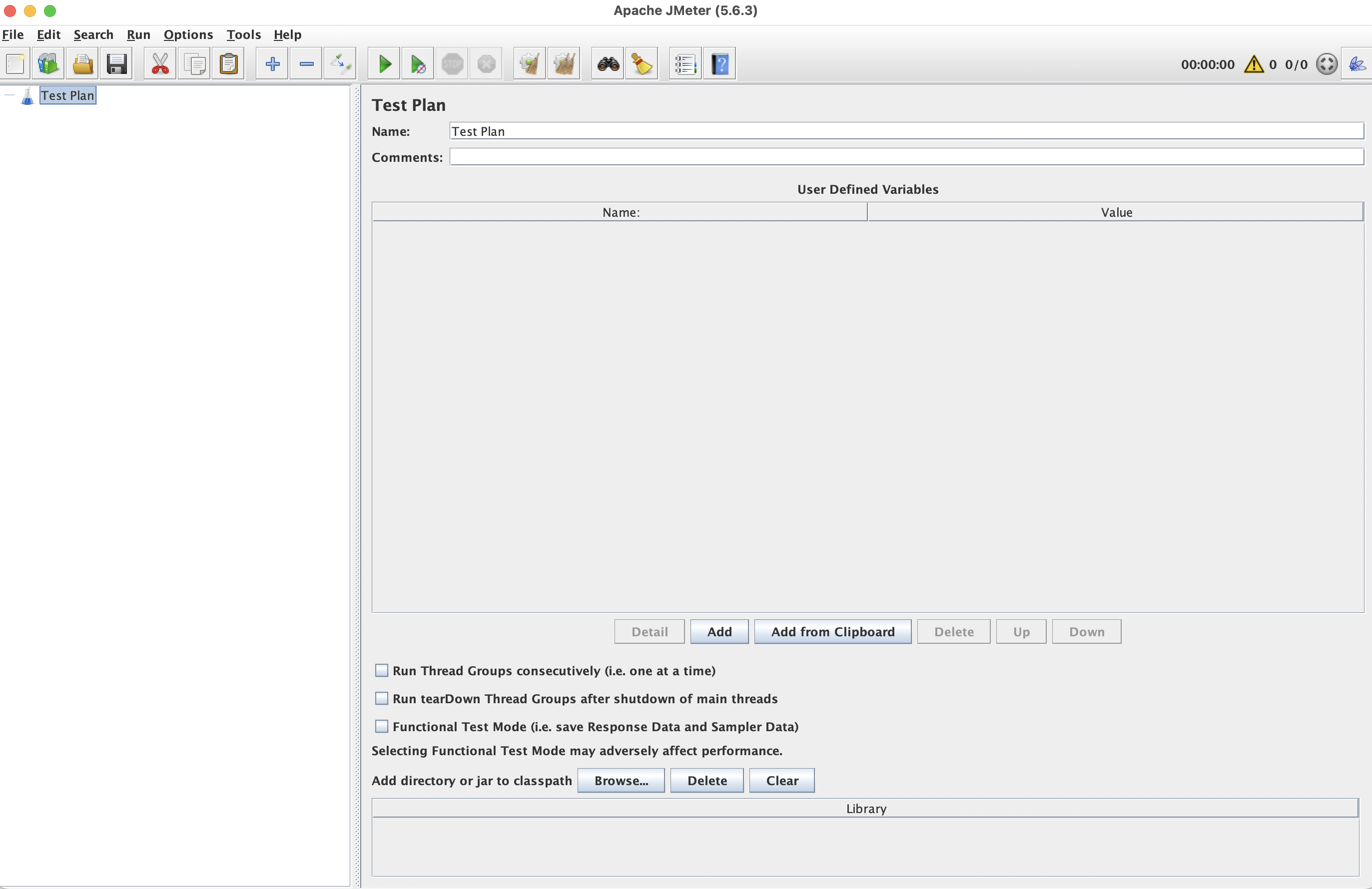
📸 Screenshot: JMeter GUI - empty Test Plan after first launch.
Optional: Add JMeter to PATH
To run jmeter from any directory, add the bin folder to your system PATH:
# ~/.zshrc or ~/.bashrc
export PATH="$PATH:$HOME/tools/apache-jmeter-5.6.3/bin"
Reload your shell (source ~/.zshrc) and confirm:
jmeter --version
Installing the Plugins Manager
The JMeter Plugins Manager gives you one-click access to dozens of community plug-ins. You can install plugins, keep them up-to-date, and uninstall them when you don’t need them anymore.
- Download
jmeter-plugins-manager-X.X.jarfrom https://jmeter-plugins.org/install/Install/. - Copy the jar into
lib/ext/. - Restart JMeter - you will see a new Plugins Manager entry under the Options menu.
Back to topTip: Popular plug-ins you may want right away include Custom Thread Groups, 3 Basic Graphs, and Throughput Shaping Timer.
Summary
- JMeter requires Java 8+.
- Download the binary archive and extract it; no installer needed.
- Launch with
bin/jmeter(GUI) orbin/jmeter -n(CLI). - Add the Plugins Manager jar to
lib/ext/for easy plug-in management.
Now we have JMeter installed and running. Let’s switch to key concepts and glossary.